Chapters
- 1What is EmbroideryTrace?
- 2Create an account
- 3Sign in
- 4Upload your image
- 5Separate colours
- 6Use Trace
- 7Meet the Stitch Editor
- 8Choose a stitch type
- 9Set satin
- 10Edit shapes
- 11Save and reopen your design
- 12Pick your hoop
- 13Preview your design
- 14Export and stitch on your machine
- 15Free Plan and Pro
- 16Credits
- 17If something looks wrong
- 18FAQ
- 19Get help
Use the toolbar to clean up shapes after you upload or run Trace. Choose a colour in Stitch Colors first, then pick a tool.
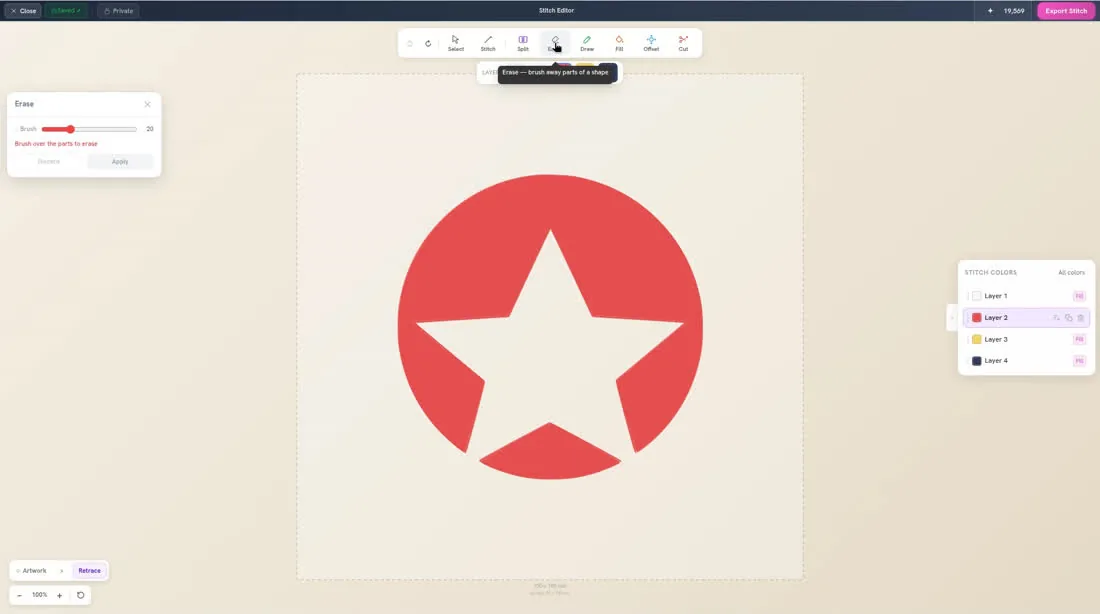
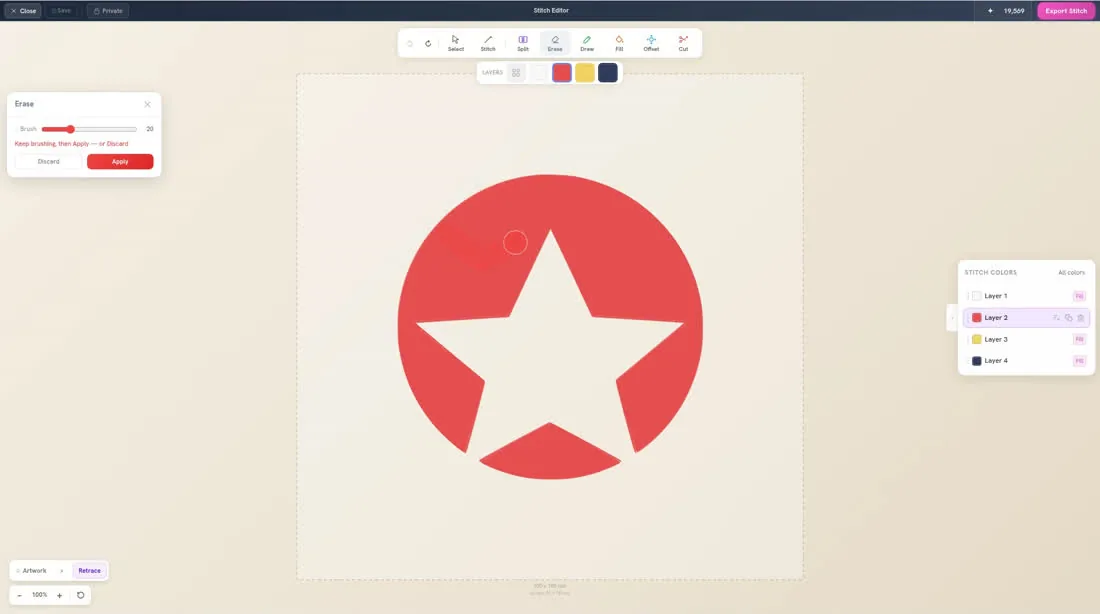
Split slices a shape. Erase brushes part of it away — set the Brush size, then click Apply or Discard. Draw adds to a shape. Fill closes a gap (this is not fill stitch). Offset grows or shrinks the edge. Cut removes a whole shape in one click. Use Undo if you change your mind.
To edit a shape
- 1
Click the colour in Stitch Colors, then click a tool, such as Erase.
- 2
Follow the tool on the canvas — for example, brush to erase, then click Apply.
- 3
Click Undo if you need to go back, or click Select when you are ready to click shapes again.